
If you use Microsoft Outlook for managing your appointments and emails, and you also use a Samsung phone, you might have noticed that your Outlook calendar events do not automatically appear in the Samsung Calendar app. This can be frustrating, especially when you want to manage everything from one place.
The good news is that there’s a quick and easy way to sync your Outlook calendar with the Samsung Calendar app. In this article, we’ll walk you through the simple steps to make your Outlook events show up in Samsung Calendar. Once done, you’ll be able to see your work meetings, personal events, and reminders all in one view.
Why Outlook and Samsung Calendar Don’t Sync by Default
Samsung Calendar is designed to sync with a variety of calendar services like Google Calendar and Samsung’s own calendar service. However, Outlook does not sync automatically unless you enable it from the Outlook app itself.
Without this step, your events from Microsoft Outlook will remain invisible in the Samsung Calendar app.
Step-by-Step: How to Sync Outlook Calendar with Samsung Calendar
Follow these exact steps to make your Outlook events appear in Samsung Calendar:
- Open the Outlook app on your Samsung phone.
Make sure you’re logged in with the email account that holds your calendar events. - Tap the profile icon in the top left corner of the Outlook app.
- Scroll down and tap Settings ⚙️.
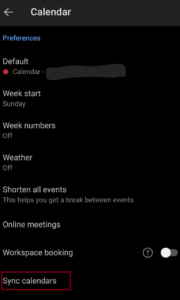
- Under the General section, tap on Calendar.
-
You’ll see a list of calendars linked to your account.
Turn on the toggle for the calendar you want to sync with Samsung Calendar. -
Now, open your Samsung Calendar app.
Your Outlook events should now be visible there.
That’s it! You’ve successfully linked Outlook with Samsung Calendar.
What If You Still Can’t See the Outlook Calendar?
Sometimes, it may take a few minutes for the calendar events to show. If you don’t see anything:
-
Make sure you are using the latest version of the Outlook app.
👉 Update Outlook on Google Play Store -
Open the Samsung Calendar app and go to Menu > Manage calendars.
Ensure your Outlook calendar is enabled here. -
Restart your phone for good measure.
Is It Safe to Sync Your Calendars?
Yes. Both Microsoft and Samsung follow strong privacy and security practices. Your data stays encrypted, and the sync process happens between trusted apps using official APIs.
Can I Sync Multiple Outlook Calendars?
Yes. If you have multiple email accounts set up in Outlook, repeat the steps above for each one. Samsung Calendar supports multiple calendars and will show them in different colors.
Benefits of Syncing Outlook with Samsung Calendar
-
View both personal and work events in one place
-
Use Samsung widgets to view upcoming events right from your home screen
-
Get automatic notifications and reminders
-
Avoid switching between calendar apps
-
Works smoothly with Bixby routines and Samsung smart assistants